Friday, December 4, 2020

Week 2 Individual Field Report

9/7/2020

Treston Russell

AT 409

Week 2 Individual Field Report

Week 2 into the UAS capstone lab was centered around a search and rescue operation along with an introduction to Martell forest property. I was placed in the recovery team 2, which had the task to search an area with a possible match of the missing person. We unfortunately were not deployed during this operation due to loss of time. This mission was conducted with the Bramor UAV, equipped with a Sony RX1 sensor, at 11:04 a.m. on September first. The Bramor flew a predesignated flight plan over Martell forest for optimal space coverage of 100m with 80/80 overlap. The Bramor finished the mission and landed at 11:49 a.m. via deployed parachute. Once the Bramor was brought back to the ground station area, the SSD card was removed and handed over to the intel branch for review. The lengthy review process was as far as the mission got, due to time. 

During this time another mission was flown with the M600 hexacopter. The M600 was equipped with two sensors, a Zenmuse XT2 10mm thermal and RGB lens and a Sony Alpha 6000 mapping sensor. For proper mapping and data collection with this airframe a Geosnap PPK receiver is mounted to the top. The mission for this airframe was to autonomously map a section of the Martell forest property with a predetermined flight. Takeoff time for this mission was 12:15 p.m. on September first. The mission took 313 images at 500ft agl over the flight area. At 12:37 the mission came to a conclusion with a manual landing. For optimal mapping outcomes, the collected data had to be taken back to the lab and processed. 


AT 409 Week 1 Field Notes


An introduction to the UAS capstone lab was conducted demonstrating the goals of the course, along with introducing some of the airframes used. Within this introduction it was stressed that checklists are fundamental to a successful UAS operation. No matter the numerous times an operator has performed a checklist, or the level of their comfortability, a professional always completes a thorough pre-flight checklist. A constant form of communication between the flight crew during preflight, takeoff, inflight and landing mitigates risk of problems during each stage. Constant communication also presents an impression of professionalism and gives the customer a sense that the flight crew has optimal experience in the field. The goals of this course are to get us comfortable with getting in the mindset of professionalism and efficiency with time and resources. To demonstrate the level of professionalism and efficiency required for the course, an introduction to two of the airframes used was conducted. First the Bramor, a fixed wing UAS equipped with an 35mm lens RX1 camera at 42 megapixels, preflight checklist was ran through with excellent communication and flow. This checklist included small things that many people who think they’ve done this enough to know what they’re doing, or in a rush, miss. From the time the Bramor is taken out of its case and assembled, to the pull of the catapult release, there was constant communication about what needed to be checked and the status of the item being checked. While the UAV was in autonomous flight, the RPIC was constantly aware of its position with the controller in their hands. The RPIC could start and stop the mission at any time, along with the capability of deploying the parachute for emergencies. The second airframe was a quadcopter equipped with two sets of sensors: Z30 camera and an XT2 thermal RGB. This allows the operator to fly to the correct position with their transmitter, and an observer to operate another transmitter for the sensors to capture optimal data. A lesson learned from this lab was that the flight crew needs to know the operation terrain well, because when the Bramor came down to land it almost hit metal poles sticking out of the ground. The final demonstration was showing the com box used for the operation. This com box is capable if EMPing all electronics within range if not handled properly. Underlining the idea of always be aware of your tools and surroundings. 

Tuesday, December 1, 2020

AT 409: Field Report Week 5

AT 409: Field Report Week 5

Aaron Varnau, Treston Russell, Tristan Bungen

Class Lab Report:

The lab for this week was conducted at Martell forest. The mission was to survey the

northeastern plot of the property, and become certified on operating the M600 alone for future

operations outside of class time. Flight crew roles were assigned as follows: Aaron as PIC,

Tristan as SO, and Treston as VO. The mission was conducted smoothly, with the help of the

checklists and the crew’s flow of communication. This communication was put on display by the

PIC’s callouts of clearing props for take off, the switch from manual control to autonomous flight,

elevation, and battery percentage. This communication helped the flight crew operate safely

when manned aircraft hugged the border of the research area. Two aircraft were spotted and

watched to be sure the mission was not going to become an unsafe operation. Once the

mission finished, the aircraft was manually landed by the PIC and packed up following the pack

up procedures. After the flight our SO, Tristan, went back to the lab and processed the data

collected. On Friday, we took the M600 out alone for an additional flight.


Hardware:

M600, PPK, Flight Pad, Sony A6000, Zenmuse XT2, Ipad


Software:

Measure App


Human Factor:

Our crew was cleared to fly on Tuesday while being observed by Dr. Hupy and Zach. We were

familiar with our checklists and ran through with only a couple questions for our observers to

make sure we were doing okay. Our flight was successful and we demonstrated good crew

resource management skills and knowledge.


MetaData

General:

Location: Martell Forest, Northeast Plot

Date: 9/25/20

UAS: M600

Sensor: Zenmuse XT2, PPK

Camera: Sony A6000

Batteries: Yellow


Flight Information:

Flight Attempt Takeoff Time: 10:46 a.m.

Flight Attempt Landing Time: 11:07 a.m.

Max Altitude: 508 ft

Flight Altitude: 500 ft

Return to Home: 262 ft

Max Distance: Disabled

Loss of RC: RTH

Shutter Speed: 1/4000

Aperture: F3.5

Iso Setting: Auto

Dial Setting: Shutter Priority

Lens Setting: Infinity Focus, F-3.5


Weather:

Temp: 66 degrees

Humidity: 62%

Precipitation: 10% chance

Wind: 5mph

Clear Skies, Great Visibility, Cirrus


Crew:

PIC: Aaron Varnau

VO: Treston Russell

Submitter: Tristan Bungen


Aircraft Sightings

● East of mission area on 4th leg

● East of mission area on 12th leg


Weekly Crew Flight Report:

This mission was completed on September 25th. The flight crew met up in the lab in NISW

around 3 P.M. We went through the necessary checklists to set up the M600 for our mission at

Martell Forest. When we attempted to fit the entire M600 with its hard case we were unable to fit

it into any of our vehicles. Kaleb cleared us to take what we needed from the M600 case and set

the drone in the back seat of Aaron's car. With Aaron as PIC, Tristan as Sensor Operator, and

Treston as Visual Observer we went through all 3 checklists given to us for the M600. We safely

put the drone together and set up the flight on Measure. As we started our flight we ran into

some issues. As we started the autonomous flight plan, measure crashed and the drone stood

still in its flight path. We were able to take control of the M600 manually and land the UAS. We

investigated and found out that the Measure app started updating itself during the flight because

we were connected to Treston’s hotspot. It was an unavoidable accident that we handled very

well. After we landed the aircraft, we changed the M600’s batteries from yellow to pink and

switched the PPK battery as well. We then proceeded to go through the checklist once more

before flight. We completed the Northeast plot with no problems. We then packed up the UAS

using the post flight checklist and made sure everything was properly in its place. We then

drove back to NISW and charged batteries and returned all supplies. Since our mission took so

long at Martell I had to leave for my job and was unable to pull the data from the SD cards and

into the data dump. I asked Zach if he would do it for me and he agreed so it was resolved. That

concludes the report for our flight of the Northeast plot at Martell Forest.


Hardware:

M600, Extra Battery Case, PPK, Flight Pad, Sony A6000, Zenmuse XT2, Cellphone


Software :

Measure App, Phone Wifi Hotspot


Human Factor:

Our crew’s communication and teamwork skills were tested and proven on Friday when we

experienced an unexpected problem with Measure. About halfway through the flight, the M600

stopped flying its grid path and simply hovered in place. Measure had to some extent crashed

and decided to run through the preflight checklist without also cancelling the current flight.

Obviously, the preflight checklist failed as the aircraft was several hundred feet in the air on the

other side of the plot from its home location. It didn’t return home because Measure hadn’t

aborted the previous plan and somehow that plan was still running in the background. Our crew

decided to manually return and land the aircraft but experienced a massive problem: the landing

gear would not come down. The batteries were running low (~35%) and we did not know how to

solve this issue. We tried a few basic things such as pressing the physical home button on the

transmitter but none worked, so we called our classmate Kaleb Gould who successfully

coached us through the issue. We switched the flight mode on the transmitter and reset

Measure. This actually led to an accidental solution and clue as to what crashed Measure; the

app needed to update and already started to install the new version during use. The app quickly

updated and we went back in and opened the flight plan. This caused the landing gear to go

down and we were able to manually land the aircraft.

This was a very stressful situation for our crew, and was certainly a bonding experience. Our

visual observer constantly updated the crew on the status of erratic flight and the sensor

observer searched for Measure solutions online and called Kaleb as the pilot maintained the

aircraft’s flight. All three of us played important roles and did so without projecting our stress and

frustration onto our crewmembers. To add a cherry on top, a manned aircraft flew directly over

the plot five minutes after we landed and was so low it looked to be below 500 feet. We have no

doubts that it could have crashed into the M600 without manual takeover.


MetaData

General:

Location: Martell Forest, Northeast Plot

Date: 9/25/20

UAS: M600

Sensor: Zenmuse XT2, PPK

Camera: Sony A6000

Batteries: Yellow, Pink


Flight Information:

Flight Attempt 1 Takeoff Time: 4:43 pm

Flight Attempt 1 Landing Time: 4:55 pm

Flight Attempt 2 Takeoff Time: 5:14 pm

Flight Attempt 2 Landing Time: 5:34 pm

Max Altitude: 508 ft

Flight Altitude: 500 ft

Return to Home: 262 ft

Max Distance: Disabled

Loss of RC: RTH

Shutter Speed: 1/4000

Aperture: F3.5

Iso Setting: Auto

Dial Setting: Shutter Priority

Lens Setting: Infinity Focus, F-3.5


Weather:

Temp: 82 degrees

Humidity: 38%

Precipitation: 0%

Wind: 4 mph

Clear Skies, Great Visibility, Few Clouds


Crew:

PIC: Aaron Varnau

VO: Treston Russell

Submitter: Tristan Bungen


Aircraft Sightings:

● Small aircraft south, 1st leg

● Small aircraft south, 3rd leg

● Aircraft east, 4th leg

● Aircraft south, 7th leg

● Aircraft south, 9th leg

Friday, May 1, 2020

Lab 10: Measure Ground Control for UAS Operations

Introduction-

This week's lab was focused on flight preparation and readiness. Planning a flight is not done at the site, but in the office. The mobile app Measure Ground Control (MGC), and the website of the same name, were used in this lab to utilize all aspects of mission planning in one program. This will keep the planner's desktop neat and organized, ultimately preventing lost data or confusion. Inefficiencies with data collection or data storage has been such a problem in the UAS industry that many companies specialize in Single Source of Technology Solutions (SSoT). Measure Ground Control is one of these SSoT companies that are capable of checking the air space for no fly zones or advisories, and creating a flight mission for the site without being there. Having these capabilities is very useful for the UAS world because it keeps all preflight information in one area, outside of your field notes. When the mission planning is complete, the app is then used to connect and monitor the UAS during operation. It allows the pilot to observe the flight in FPV, along with flight metadata. This is the most efficient way of tracking data throughout the preflight, inflight and post flight operations.

Overview-

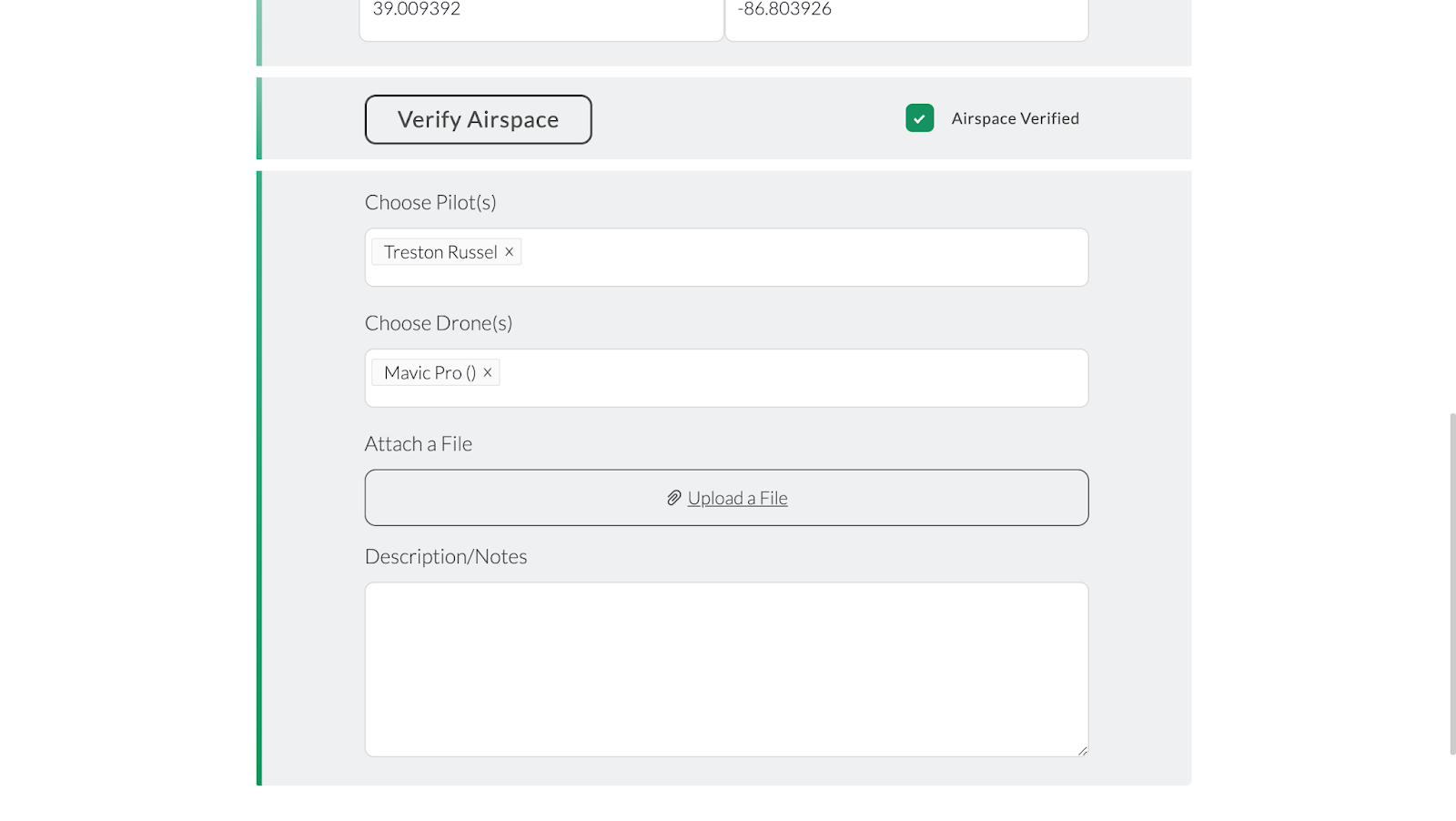
Before creating a flight plan on the app a mission has to be created and shared onto your profile, and is available for preflight planning. Figures 1 and 2 represent the basic setup of creating a flight mission. This details the mission name, date, type, location, pilot and airframe.

Figure 1: First half mission setup

Figure 2: Second half of mission setup
After the mission is created the planning process continues on the website. The first thing to check is the airspace in which you plan on operating. If you are within restricted airspace or any other airspace a part 107 operator can not fly in, then you need to seek permission for flight. Figure 3 represents the Airmap provided by the MGC app, the website does not look much different. Figure 4 and 5 represent the grounds when checking Airmap at Purdue campus and the Purdue Wild Life Area. The Purdue campus area shows a no fly zone due to the class D airport nearby, whereas the Purdue Wild Life Area is outside the class D airspace.
Figure 3: MGC Airmap
Figure 4: Purdue campus Airmap
Figure 5: Purdue Wild Life Area Airmap

Once the Airmap is consulted, and permission is given if needed, the flight planning begins remotely. The site is observed from the MGC Airmap for the best flight path, as shown in figures 6 and 7. The flight path is then created in flight planning, shown in figures 8 and 9. Once the flight path has been chosen, the mission can be shared onto your profile for the flight team to conduct the flight. When the flight team arrives on site, they can refer to the MGC for any updates on advisories in your area. After checking the advisories, weather and preflight checks, the operator is then able to make adjustments to the flight path if needed. Changes like adjusting the physical path the drone will be following, changing heights, speeds and time of flight could be done within the app due to the topography or other objects in the way that were not observed in the planning portion. These possible changes are demonstrated in figure 10. This is a major help to the efficiency of UAS operation due to being able to change features on the fly in one application, rather than having to set up a major ground station or aborting the mission to return to the office to make the changes. The pilot can then start the mission, after making appropriate changes, and monitor in FPV all of the data being collected. Once the mission is completed the data is then uploaded to the website in the operators mission profile.

Figure 6: MGC Airmap site exploded view
Figure 7: MGC Airmap site close view
Figure 8: MGC flight planning
Figure 9: MGC final flight planning
Figure 10: MGC app finalized mission adjustments

Conclusion-

In conclusion mission planning is one of the most important processes in executing a UAS flight mission. Having one place to keep all information created or collected betters the overall efficiency of the UAS data collection operation industry. This is why it is important to utilize SSoT applications to keep everything organized and easily accessible for the operators, planner and modelers.  Not only is having the data collection and planning all in one place very important for efficiency, but incorporating the mission execution portion of the operation in the same application increases that efficiency. 

Saturday, April 25, 2020

Lab 9 Using Arc Collector

Introduction-

Lab 9 was a centered around data collection with a mobile device. The ArcGIS Collector app, for iPhone, was used to collect this data, and ArcGIS Online was used to create the map. ArcGIS Collector is used to collect mobile data without a UAS. The data collected is on a predesigned map from ArcGIS Online, with the specific layers and points desired to be mapped. ArcGIS Collector relates to UAS by the collection of data for mapping. Although UAS data collection is more dynamic and accurate, the mobile app still allows you to map an area and its features.

Methods-

To start the lab, once the app was installed, a tutorial on ArcGIS's Collector details the basics the app can deliver. The tutorial has the reader try the free version of the mobile app, and using the Parks template provided. The template already has the layers and feature designations preset, so the tutorial requires no preparation. The task of this tutorial is to go to a park and find a picnic table to map the tables location, then take a picture of it. Once the picnic table's position is defined, the next and final step is to stream map the closest path to the picnic table. I preformed the tutorial in the park in Bloomfield, IN. Figure 1 represent the picnic table location, figure 2 and 3 represent the streaming and finalized path to the picnic table.

Figure 1: Picnic table location
Figure 2: Streaming picnic table path

Figure 3: Mapped path
 After the finishing the tutorial, the lab continues diving into the app by having the user signing in and completing another tutorial. When signed into the Collector app there are no maps provided, so the user has to create one on ArcGIS Online. When signed into the website, the tutorial has the user prepare the map by building and defining layers for the soon to be created map. The defining features of the map include: picnic tables, restrooms, and water fountains. Once all of the details are finished, the map has to be created and shared with your account for mobile data collection. Then the tutorial has the reader go back to the park and map the picnic tables, restrooms, and water fountains. I went back to the Bloomfield park, and finished mapping it. The following figures represent the finalized mapping of the park, and some of the features for which the area was surveyed.

Figure 4: Bloomfield Park map

Figure 5: Water fountain example

Figure 6: Bathroom example

Figure 7: Picnic table example
Discussion:

This lab showed me that there are more ways of quickly surveying and mapping an area's surroundings. Although the app does not collect as much data as UAS, the app can be used to map features in the mission planning process. The data I collected was limited, due to the park being small, but having data like this for mission planning will allow operators to have a map of the surveying area to avoid. This could be because of large trees, densely populated areas and telephone poles that could be a physical risks or EMI risks. The URL below provides a link to the map I created.
https://purdueuniversity.maps.arcgis.com/home/item.html?id=efdbe26314e54a47b5902eb473c8c29c#overview

Sunday, April 12, 2020

Lab 8: Calculate Impervious Surfaces from Spectral Imagery

Introduction-

This weeks lab consisted of following an online lesson, Calculate Impervious Surfaces from Spectral Imagery, from Learn ArcGIS Online Lesson Gallery. The lesson consists of three sections: Segment the imagery, Classify the imagery and Calculate impervious surface area, but the first two sections were the only assigned portions of the lesson. The goal of the lesson is to understand the process of how to take UAS data and be able to identify and calculate the surface area of impervious areas.

Segment the imagery-

Before we can classify the impervious and pervious areas, once the data is downloaded, we have to change the bands combination to allow the features to clearly show. This step was done with the Extract bands tool in the raster function pane. Extract bands tool makes a new image that uses different colors to display the difference between the pervious and impervious areas in the map, shown in figure 1.
Figure 1: Extracted bands
Next the Classification Wizard was used for image segmentation and classification. Segmentation of the image was to group some of the same looking pixels together to generalize the image, making it easier to classify. There are three parameters of the Classification Wizard to control the segmentation of the map: spectral detail, minimum segment size in pixels and show segment lines only. Changing these three from default values to the given values, defines the important parts to easier distinguish between pervious and impervious areas. The final segmented map should look like figure 2.
Figure 2: Segmented classification


Classify the imagery

After getting segmenting for easier classification, the second section begins by creating training samples. Training samples are polygons created in general areas of either pervious and impervious areas to distinguish the difference, and categorize what each color represents. So two training samples were created to classify pervious versus impervious areas, and given their own distinct color. Then subclasses were made within each training sample to classify the what the exact area represents, like for impervious there are gray roofs, driveways and roads, whereas pervious has bare earth, grass, water and shadows. These samples will later be used to distinguish what area each pixel represents. 

The next step finally classifies the image, representing pervious versus impervious. After clicking run the map should change colors representing the areas classified as pervious or impervious like figure 3.
Figure 3: Classified areas
After running the classification, it is important to reclassify small errors within the map. So for the final page of the wizard the Reclassification page allows you to find these mistakes and correct them. My run did not experience any errors in the preview. Then finally the final classification is to be ran for the final map. After selecting finish the final map should look like figure 4, with green representing pervious areas and grey areas.
Figure 4: Pervious versus Impervious areas

Friday, April 3, 2020

Lab 7: Volumetrics

Introduction:

In this two part lab assignment, the first job was to create a DSM in Pix 4D and find the volume values within an isolated area. In part two, the job was to make an elevation progression map between three sets of raster data of an isolated hill in Litchfield, WI.

Part 1:

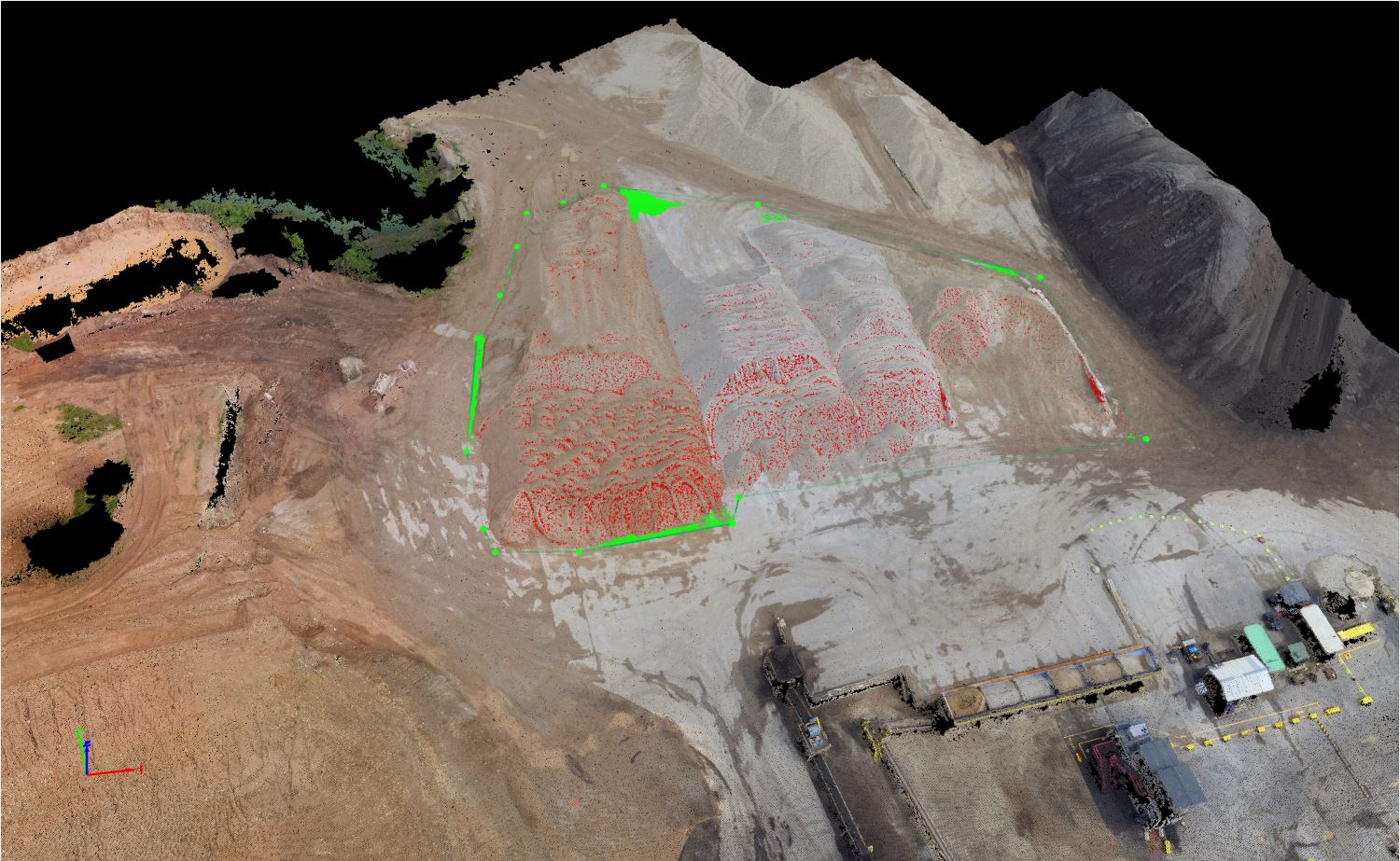
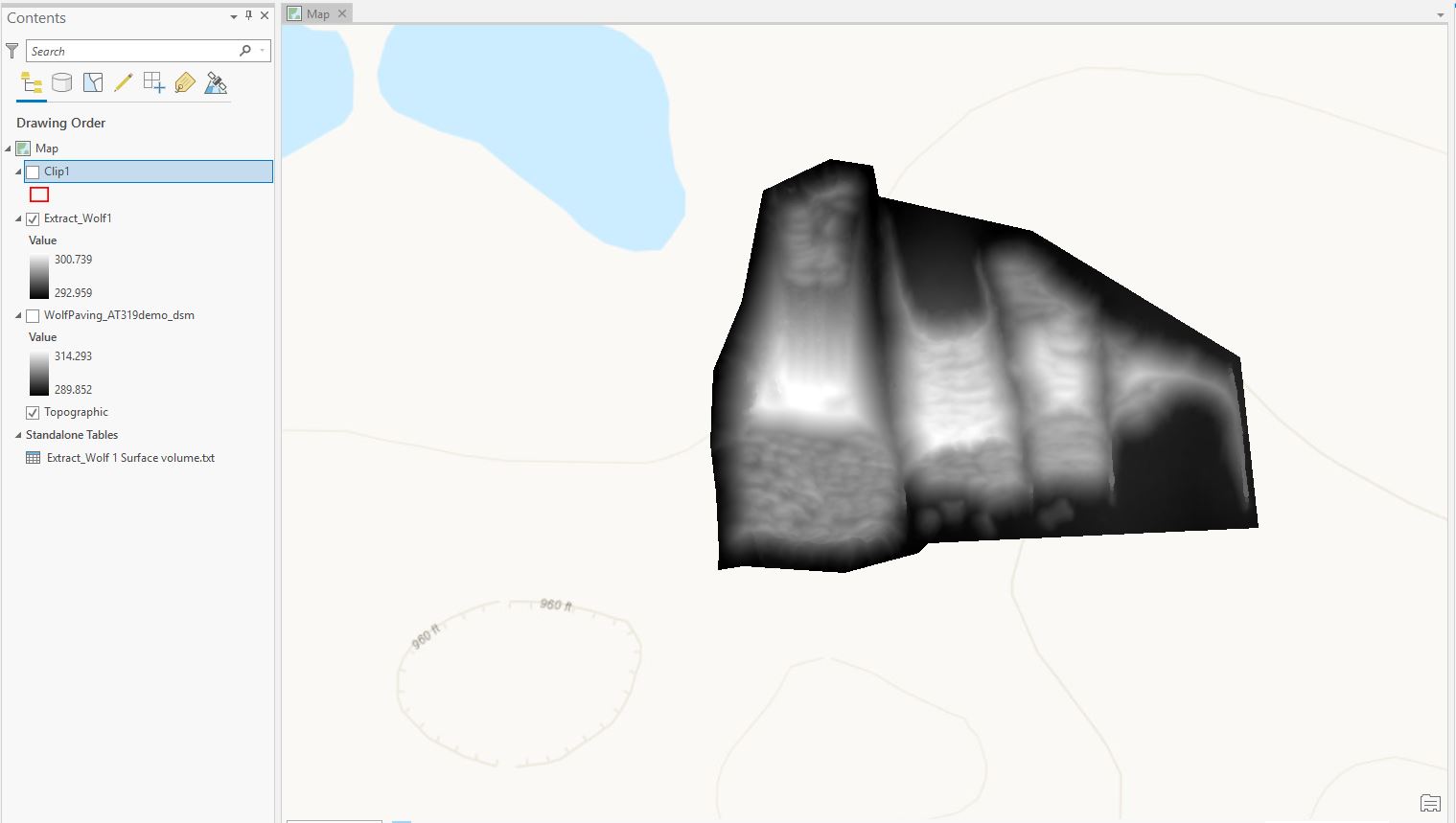
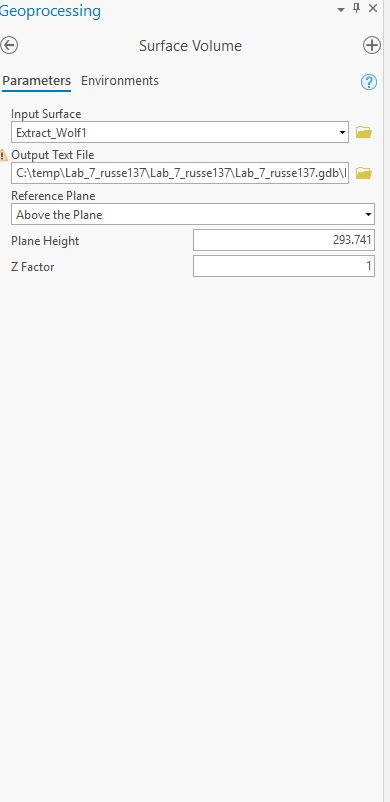
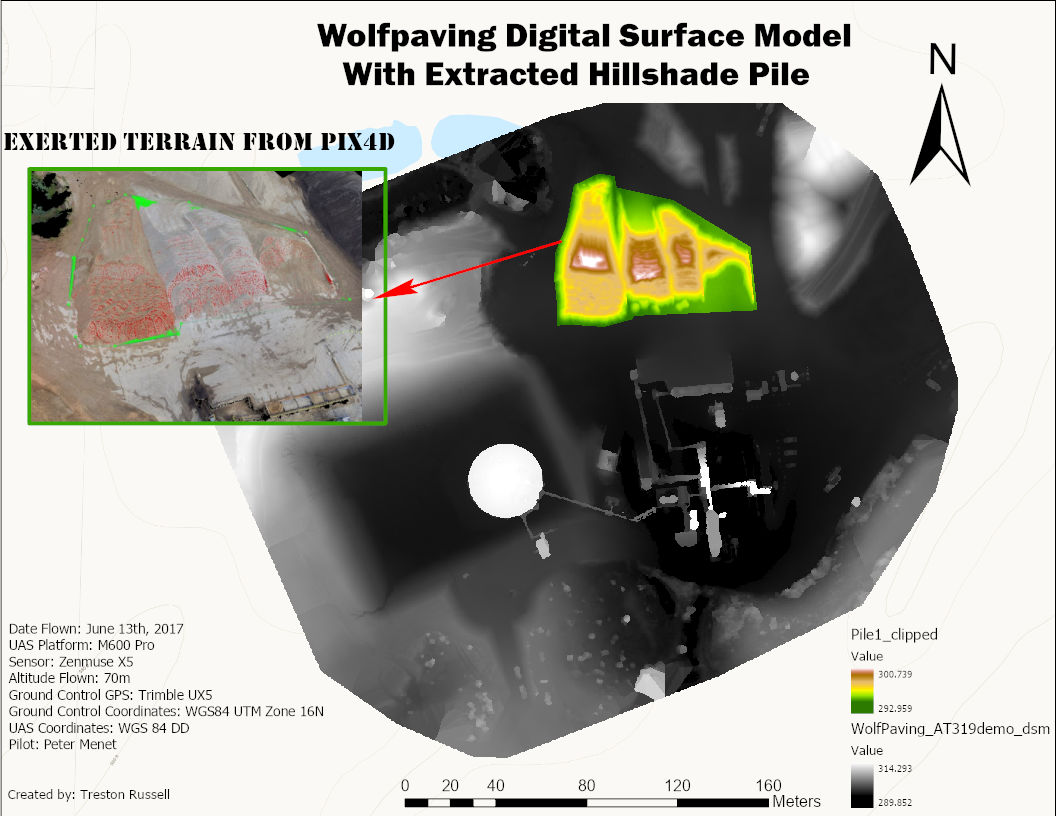
In part one of this project ArcGIS Pro was used to isolate a portion of the Wolf Creek data set, and determine the volumetrics (Figure 1-2). The Volume tool was used to outline the desired survey area. Within this area we can determine the terrain's 3D volume, cut volume, fill volume, and total volume (Figure 3). After the volume values are found, ArcGIS Pro was used to map the survey area along with calculating the area's elevations. The tools used to accomplish this part's goal were: Cookie Cutter to extract the desired area to calculate the raster data set, clip to create the polygon, Extract by Mask was used to extract the polygon to separate this from the original raster data set, and Surface Volume for to determine the area's volume and area (Figure 4-5). Then of course the area has to mapped to display the survey area, along with a comparison between the survey area and the original raster set.
Figure 1: Pix4D custom average output
Figure 2: Pix4D volume area

Figure 3: Pix4D default volume
Figure 4: Arc Pro volume part 1
Figure 5: Arc Pro average elevation

Figure 6
Figure 7

Part 2:

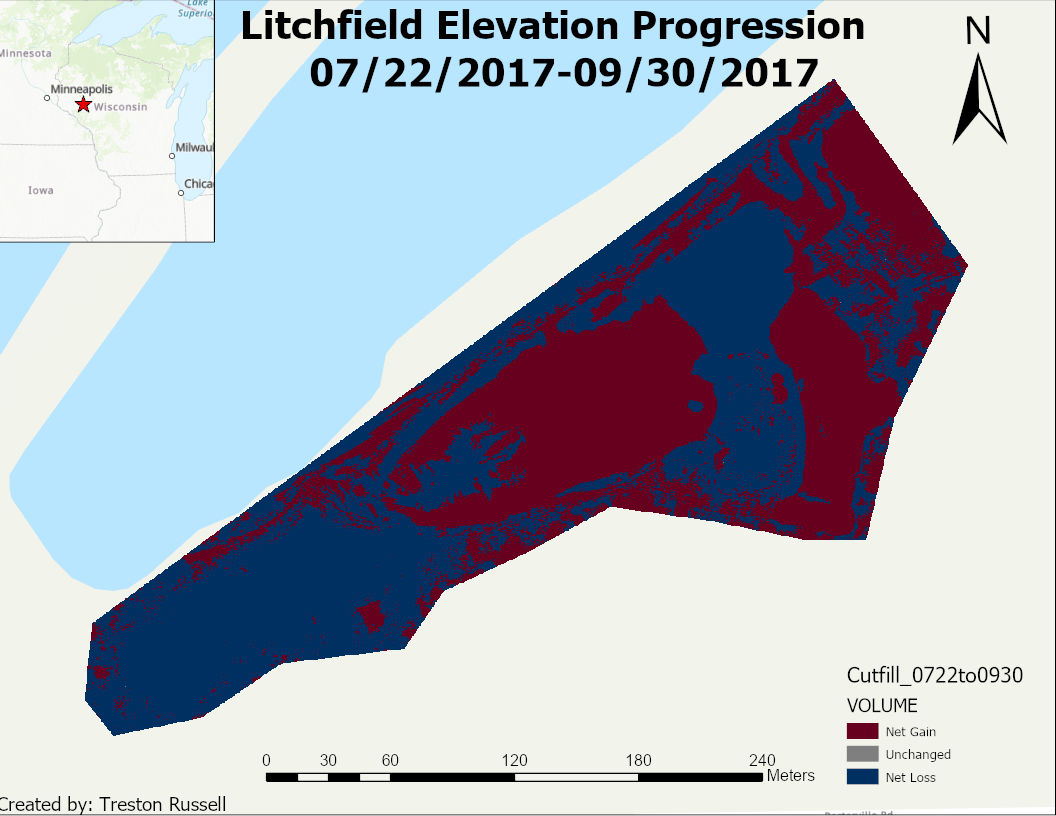
Part two's focus was on the new Litchfield data set. The data included three different raster data sets representing three consecutive months of the area. After inputting the data, they all needed to be resampled to get the same pixel size. for all three. The Resampling tool changes the spatial resolution of the raster data. This was used to increase the accuracy of the comparison by changing the three raster datas to 10cm pixel size. Surface volume was then found for each raster data set, Figure 6 represents the comparison over time. Cut Fill was then used to visually compare the surface volume of the three raster sets, represented in Figure 7. Mapping of the area's three rasters was created in a side by side represented in Figure 8.


July
August
September
Coordinate System
WGS 1984 UTM Zone 15N
Pixel Size
10cm
10cm
10cm
Minimum/Maximum Height
226.286m
254.15m
218.943m
271.194m
221.116m
267.257m
Figure 6

Figure 7
Figure 8